Creating Rules
How Activity Rules Work
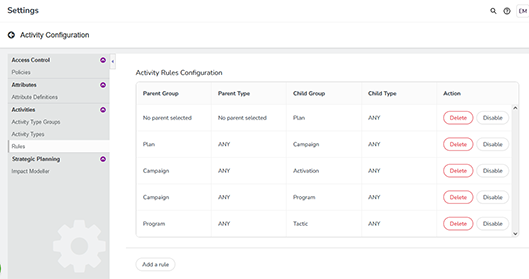
Administrators create and manage activity rules in the Rules section of Activity Configuration. Existing rules are displayed in a table, where each row of the table defines one parent-child relationship:
Defining Root Elements
Lines in which neither a parent group nor a parent type is entered define the root elements. In the following example, the Plan group is created without a parent. This means that all activity types assigned to the Plan group can be set as root element:

Defining Relationships Between Activity Type Groups
Let's assume you want to create a relationship between the Group 1 and its child Group 2.
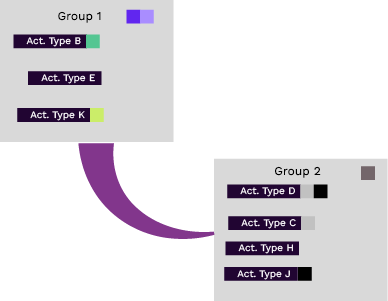
The following screenshot shows this case in the second line. This means that all activity types of the Campaign group can be created as children of all activity types of the Plan group.

Defining Relationships Between Activity Types
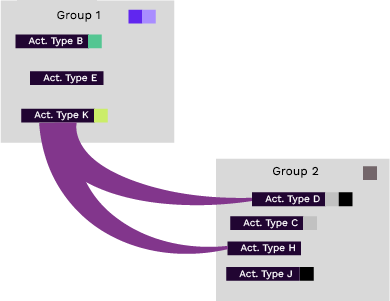
However, you may find that an activity type should only be used as a child of a specific other activity type. An example could be that you want to use certain campaign types only within a strategically oriented plan. The following picture shows Activity Type K (assigned to the Group 1), for which only Activity Types D and H should be created as children:
You create this as follows:
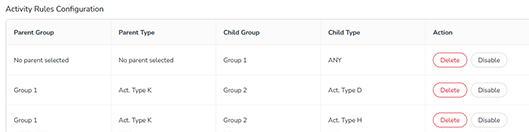
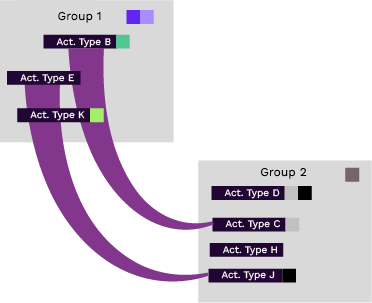
If you want to maintain the exclusive relationship of Activity Type K to D and H, you must create separate rules for B and E as well. A simple solution is to also only link these to activity types from the Campaign group, for example Activity type E as parent of Activity type J and Activity type B as parent of Activity type C:
Before you begin
To be able to create a rule, the following objects must be created beforehand:
-
The needed activity types and activity type groups.
Create a Rule
You can create a new activity rule at any time.
To create an activity rule, follow these steps:
-
In side navigation, click Activities.
-
In the Activities view, click
 .
. -
Click Rules in the menu on the left side.
-
In bottom-left corner of the page, click Add a rule.
A line is added to the table.
-
In the Parent Group and Parent Type columns of the line, define the parent of the relation.
-
In the Child Group and Child Type columns, define the child of the relation.
-
In the Action column, click Save.
The settings for activity configuration are displayed.
The Activity Rules Configuration page is displayed.
You have created a rule, and it takes effect in your activity hierarchy immediately.
Tip
In the Types & Groups section of Activity Configuration, the settings page for each activity type and activity type group contains a Rules tab. On this tab, you can see a diagram that visualizes how the activity rules affect the selected activity type or group. You can use these diagrams to easily verify if your activity rules are working as intended.